November 26, 2026 · Slice & Crop
How to Crop Out the Middle of a Picture (Without Photoshop)
You have a good photo with a bad strip running through it. A timestamp across the middle. A stranger walking behind your group. A blank gap in a long screenshot. A stretch of flat water in the middle of a panorama.
Your first instinct is to crop it out. But a crop keeps one rectangle. The strip you want gone sits inside that rectangle, so cropping can only cut from the edges. It cannot touch the middle.
This guide shows the workaround people use today, then the one-tap way to do it on Android.
Why a normal crop cannot do this
Cropping picks a rectangle and throws away everything outside it. Anything inside the rectangle stays, including the strip in the middle.
To remove a middle strip you have to do something a crop cannot do: take the photo apart, throw away the strip, and join the two good halves back together. That is a slice, not a crop.
The workaround: crop two copies and reassemble them
This is the best answer the web offers today, and it works, but it is fiddly. It takes about six steps:
- Make two copies of the photo.
- Crop the first copy so it keeps everything above the strip and nothing below it.
- Crop the second copy so it keeps everything below the strip and nothing above it.
- Open a blank slide or canvas in PowerPoint or a similar app.
- Place the two halves on the slide, one above the other, and line up the edges so they meet exactly.
- Export the slide as a new image.
It works. It also takes several minutes, needs a second app, and lining the halves up by eye is easy to get slightly wrong. If the strip runs vertically instead of horizontally, you do the same thing sideways.
The one-tap way on Android: Slice & Crop
Slice & Crop is a free photo editor for Android (Android 12 and up) that does this in one step. Every feature is free. There is no account, and your photos never leave your phone.
- Open the photo in Slice & Crop.
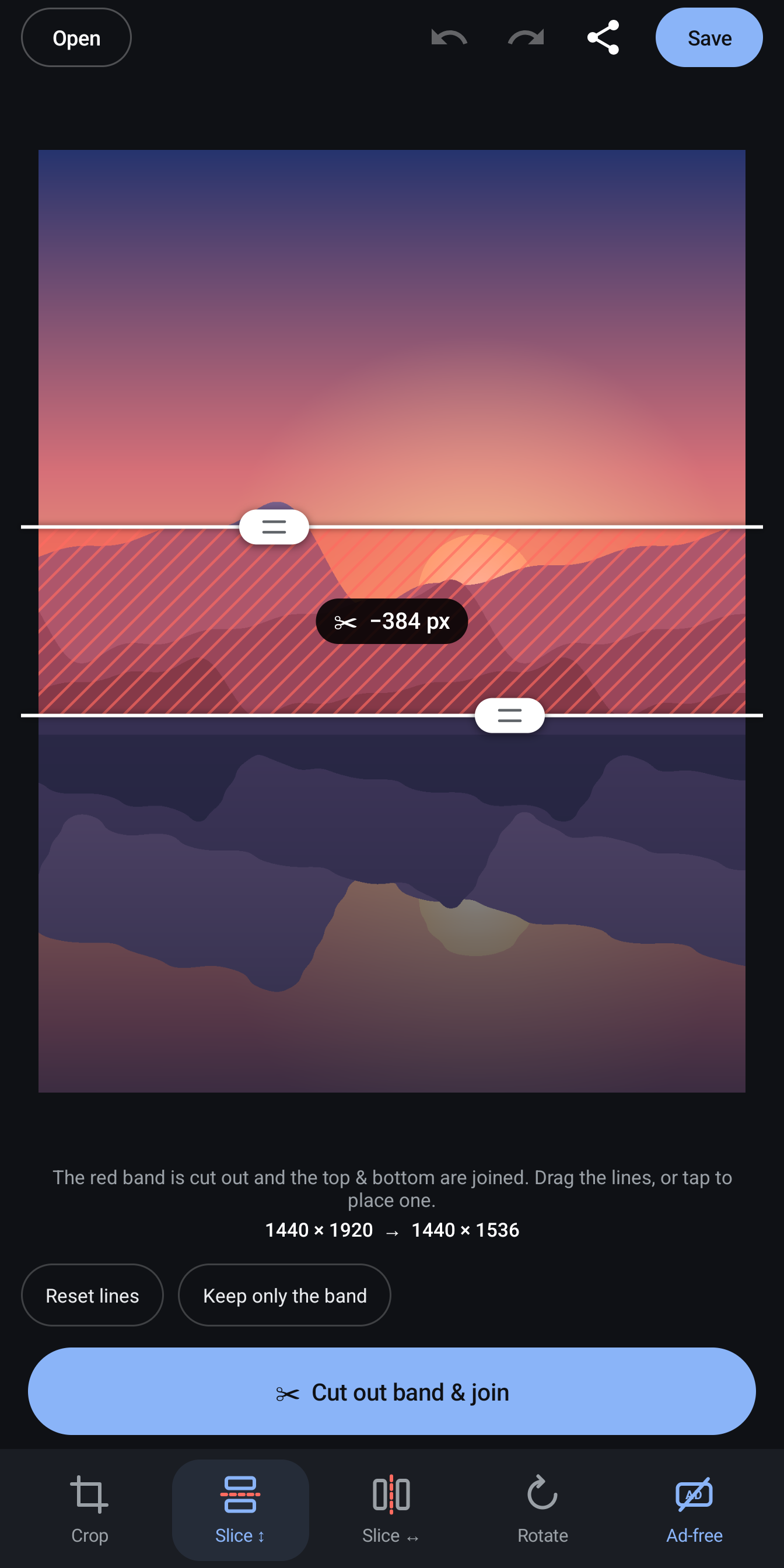
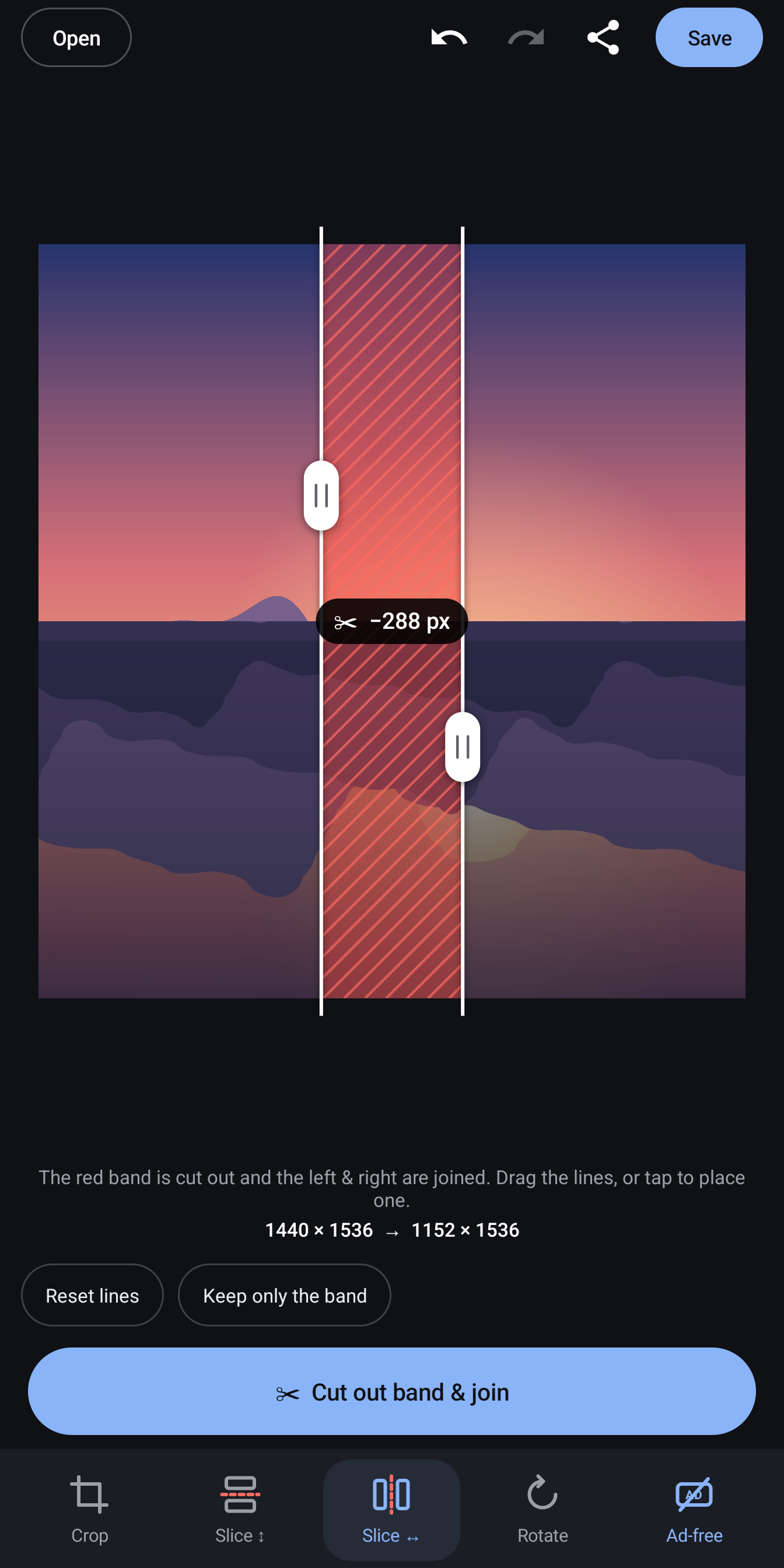
- Switch to Slice and choose rows to cut a horizontal band, or columns to cut a vertical band.
- Drag the two lines so they sit on either side of the strip you want gone. Zoom in with the magnifier first if the edge needs to land exactly.
- Tap “Cut out band & join”. The strip is removed and the two halves join into one photo.
- Save. The result is pixel-exact, at the photo’s full quality.
That is the whole job. No second copy, no slide, no lining anything up by hand.
When slicing works best
Slicing works when the unwanted part forms a whole band across the photo:
- A timestamp, date stamp, or caption strip across the middle.
- A banner ad or cookie notice baked into a long screenshot.
- A blank sidebar or empty gap in a screenshot.
- A stranger or a head spanning a band across a group photo.
- A dead stretch in the middle of a panorama, like flat water or empty sky, where cutting it out tightens the whole shot.
Cut through flat, featureless areas when you can. Never cut through a face or a line of text: the halves join where the strip was, so anything crossing the cut will not line up.
When slicing is the wrong tool
Three cases where you should not slice:
- A person standing alone in the middle of the frame, with things you want to keep on both sides. Slicing would take a whole strip with it. That is an eraser job. Google Photos Magic Eraser is free for everyone now, and Samsung Gallery has Object Eraser. Slice & Crop has no eraser and does no AI fill.
- A person at the edge of the frame. Just crop them out. That is what cropping is for.
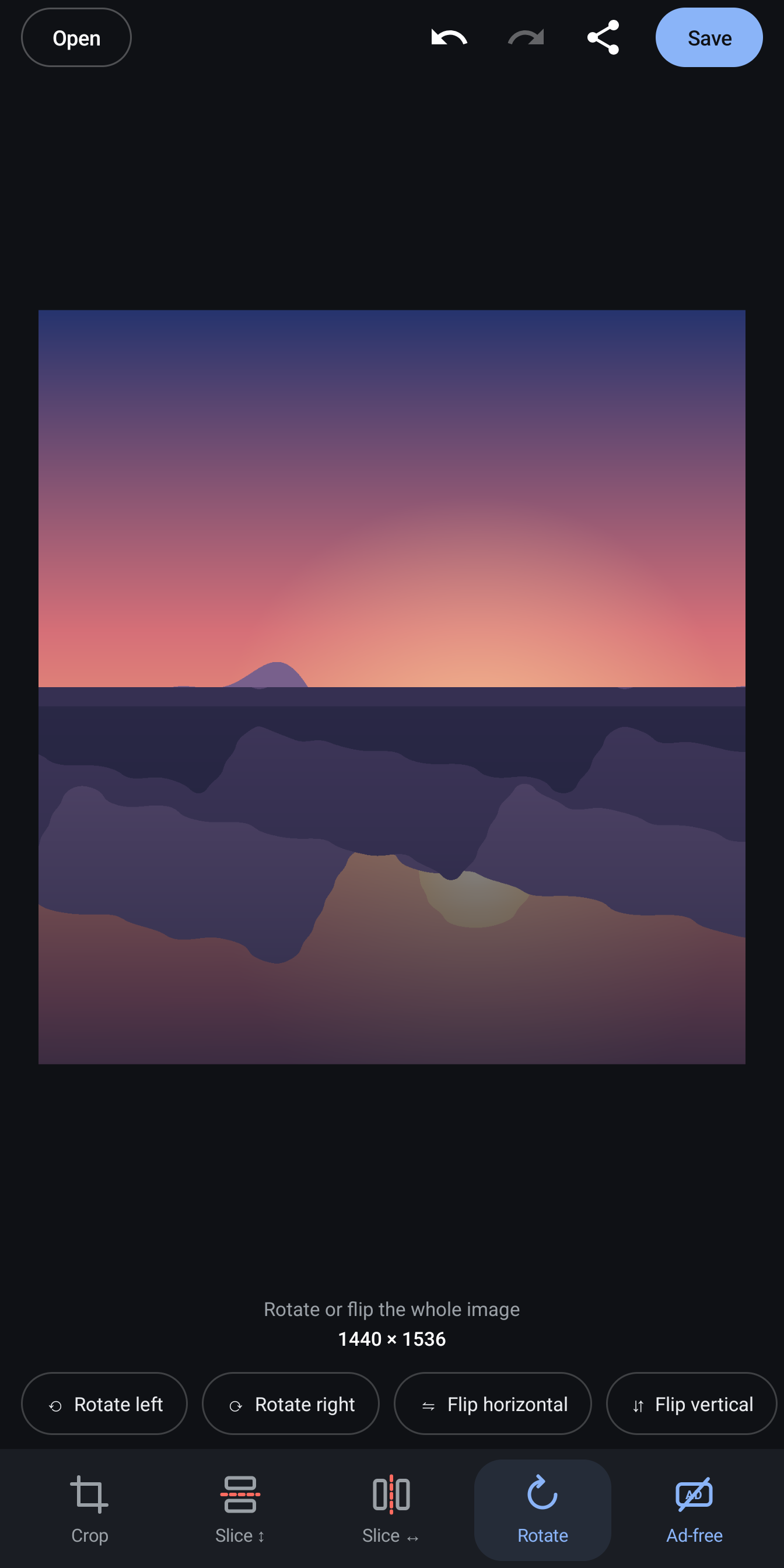
- A slightly tilted horizon. That needs a 1 to 3 degree turn. Slice & Crop rotates in 90° steps only, so send that job to Google Photos, which has a straighten slider.
The short version
A crop removes the edges. A slice removes the middle. If the thing ruining your photo runs in a band across it, slice the band out and join the halves. On Android, Slice & Crop does it in one tap, for free.